
Quick Start Guide
The fastest way to start is the web app — sign up at scrapalot.app and you are asking questions about your own documents in minutes, with nothing to install.
Prefer an app? There is a native desktop app for Windows, macOS and Linux, and a native Android app.
Want to run it yourself? The Community Edition is free and open source (AGPL-3.0) and starts with one docker compose up.
Platforms at a glance
Web app (any modern browser), desktop app (Windows, macOS, Linux), and Android app. All three share one account. See Apps & Platforms.
Choose Your Path
| Path | Who it's for | What you need | Time |
|---|---|---|---|
| Hosted cloud | Almost everyone | An email address | ~5 min |
| Community Edition | Self-hosters, developers | Docker + an LLM API key | ~20 min |
| Enterprise on-premise | Companies with data-residency rules | An Enterprise arrangement | On request |
What You'll Have
By the end of this guide:

A running Scrapalot
On our cloud, or on your own machine

Upload & chat with documents
PDF, EPUB, Office, audio and video

AI-powered answers
With source citations

Web, desktop and Android
One account across all three

Cloud or local AI models
Your choice

Your data stays yours
Export and migrate anytime
Path A: Hosted cloud (recommended)
No prerequisites — you need an email address and a browser.
1. Create your account
- Go to scrapalot.app/sign-up
- Enter your email and password
- Click Create Account — the free Researcher plan needs no credit card
- You are logged in and land on the dashboard
2. Install an app (optional)
The web app is fully featured, so this step is optional:
- Desktop — download for Windows, macOS or Linux. On first launch choose Sign in with your browser to use your account, or Continue as guest to try it without one.
- Android — download the APK and sideload it. Not on the Play Store yet.
See Apps & Platforms for install details, including the extra Gatekeeper step on macOS.
Path B: Self-host the Community Edition
The Community Edition is the open-source core: document ingestion, hybrid RAG chat with citations, collaborative notes, read-aloud, and bring-your-own-key model support. It runs as one Docker Compose stack.
Prerequisites
| Requirement | Version | Check command | Why |
|---|---|---|---|
| Docker | 24+ | docker --version | Runs the whole stack |
| Docker Compose | v2 | docker compose version | Orchestrates the services |
| An LLM key | — | — | OpenAI, Anthropic or DeepSeek — or a local GGUF model |
You do not need Node, Python or PostgreSQL
Everything runs inside containers, including PostgreSQL 18 with pgvector. You only install those toolchains if you intend to develop on Scrapalot itself — see Contributing.
1. Clone and configure
git clone https://github.com/sime2408/scrapalot.git
cd scrapalot

cp .env.example .envEdit .env and set at minimum:
| Variable | Value |
|---|---|
POSTGRES_PASSWORD | A strong database password |
JWT_SECRET | A random 32+ character secret |
OPENAI_API_KEY | Your LLM key (or ANTHROPIC_API_KEY / DEEPSEEK_API_KEY) |
2. Launch the stack
docker compose up -d --build
docker compose logs -fThe first build takes a while. Database migrations run automatically on first boot — Liquibase for the Kotlin backend, Alembic for the Python backend, against the freshly created scrapalot and scrapalot_backend databases.
3. Open the app
Once the containers report healthy:
| Service | URL |
|---|---|
| Web app | http://localhost:3000 |
| API gateway | http://localhost:8080 |
| Kotlin backend | http://localhost:8091 |
| Python AI backend | http://localhost:8090 |
| PostgreSQL | localhost:15432 |
| Redis | localhost:6379 |
Open http://localhost:3000 and you get the Scrapalot sign-up page. The first account you create is yours to keep — there is no external sign-up service involved.
To stop everything: docker compose down (add -v to also wipe the data volumes).
Path C: Enterprise on-premise
Enterprise customers can have the full product — deep research, knowledge graph, AI Scientist, voice, integrations — deployed to their own infrastructure, with support and SLAs. See the Deployment guide or contact sales.
First Steps in Scrapalot
The rest of this guide applies to every path.
1. Upload your first document
- Open Knowledge Stacks in the sidebar and select a collection (or create one)
- Drag files onto the Upload tab, or click Browse Files
- Click Compose to start processing
- Watch live progress as the document is parsed, chunked and embedded — it is ready to query when processing completes
Supported formats:
| Kind | Extensions |
|---|---|
| Documents | .pdf, .epub, .docx, .rtf, .txt, .md |
| Spreadsheets | .xlsx, .xls, .csv, .tsv |
| Audio (transcribed) | .mp3, .wav, .m4a, .ogg, .flac, .aac, .opus, and more |
| Video (transcribed) | .mp4, .mov, .mkv, .avi, .webm, and more |
Files up to 200 MB each. Processing time depends on size and whether OCR is needed — a short text PDF takes seconds, a scanned book takes minutes. See Uploading Documents for details.
2. Ask your first question
- Select a Knowledge Stack in the chat toolbar, or type
@to pick a single document (@/for a collection) - Type a question in the chat box
- Press Enter
- Read the answer — every claim carries a citation back to the source passage
Example questions:
- "What is this document about?"
- "Summarize the main points"
- "What does it say about [specific topic]?"
- "List all the key findings"
Click any citation to jump to the exact passage it came from. See Asking Questions for search modes and Deep Research.
Configuration Options
Using local models (Ollama)
Install Ollama:
# Install Ollama
curl -fsSL https://ollama.com/install.sh | sh

# Pull a model — a small one first if you are unsure about your hardware
ollama pull nemotron-3-nano:4b     # or nemotron-3-nano:30b on a bigger machine

# Start Ollama (runs on http://localhost:11434 by default)
ollama serveConfigure in the Scrapalot UI:
- Open Settings → AI Providers tab
- Click Add
- Select Ollama from the provider list
- The endpoint auto-fills with
http://localhost:11434 - Click Fetch Models to list the models you have pulled
- Select the ones you want and save the provider
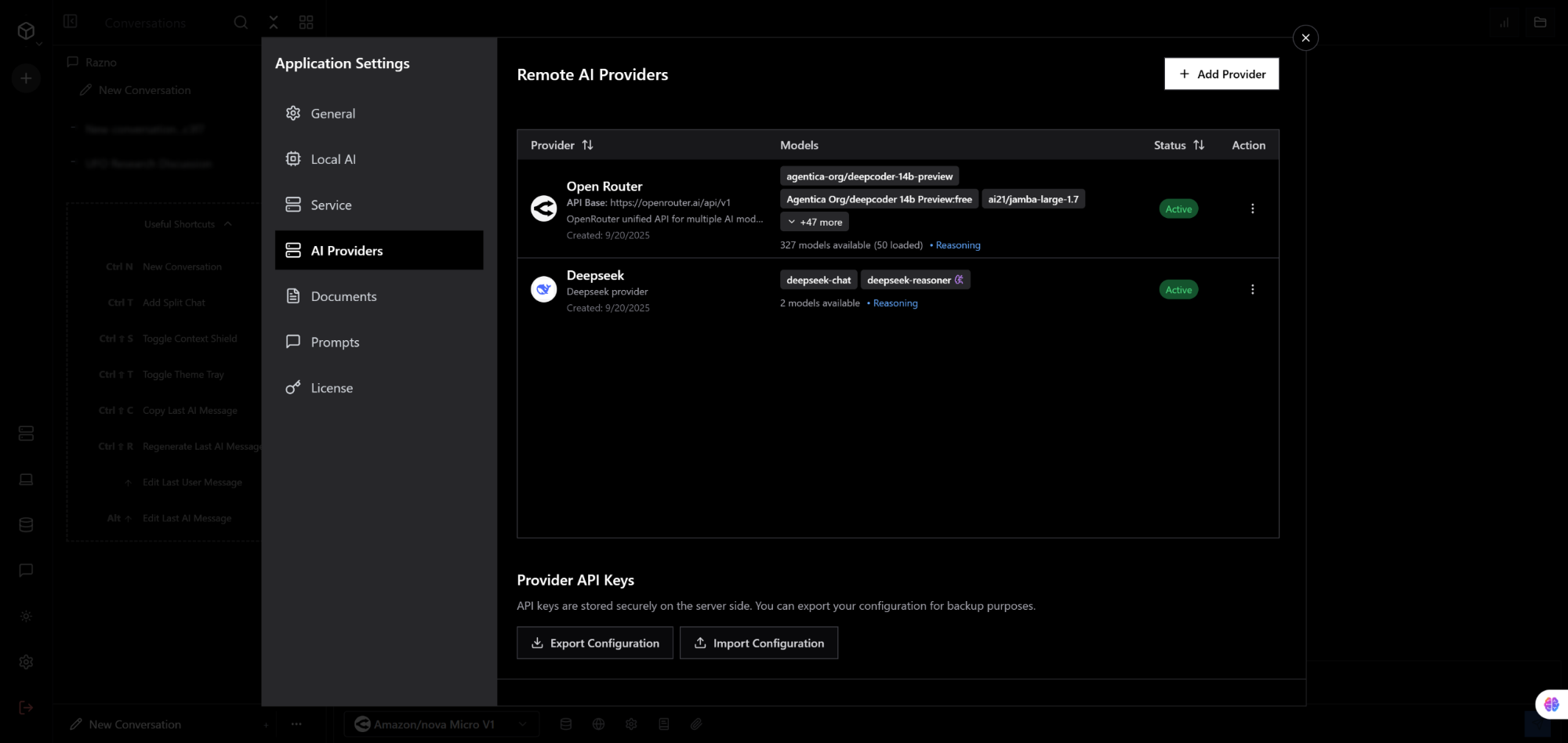 AI Providers tab showing Ollama, vLLM, and LM Studio configuration
No API keys needed — the models run on your own machine.
Ollama must be reachable from Scrapalot
http://localhost:11434 means "localhost as seen by Scrapalot". On the hosted cloud, our servers cannot reach your laptop — local providers work when you self-host, or when Scrapalot runs on the same machine or network as Ollama. Expose it with a tunnel (for example Tailscale) if you want to use it from the cloud.
Other local model providers
vLLM and LM Studio are configured the same way:
- vLLM: high-performance inference server (requires a custom endpoint URL)
- LM Studio: desktop app (default:
http://localhost:1234/v1)
All three live in the AI Providers tab. The Local AI tab is different: in the desktop app it downloads and runs models on your own computer; on the web it is an admin view of the server's GPU models.
Advanced settings
Other configuration lives in the Settings UI:
- General — theme, accent color, language, font preferences
- Voice — voice assistant, wake word, your own Whisper key
- Documents — citation style, chunking strategy
- Prompts — custom prompt templates
- Workspaces — workspaces and team members
- Integrations — MCP servers for your assistant, and API keys to use Scrapalot from your own agent
- Account — profile, plan and usage
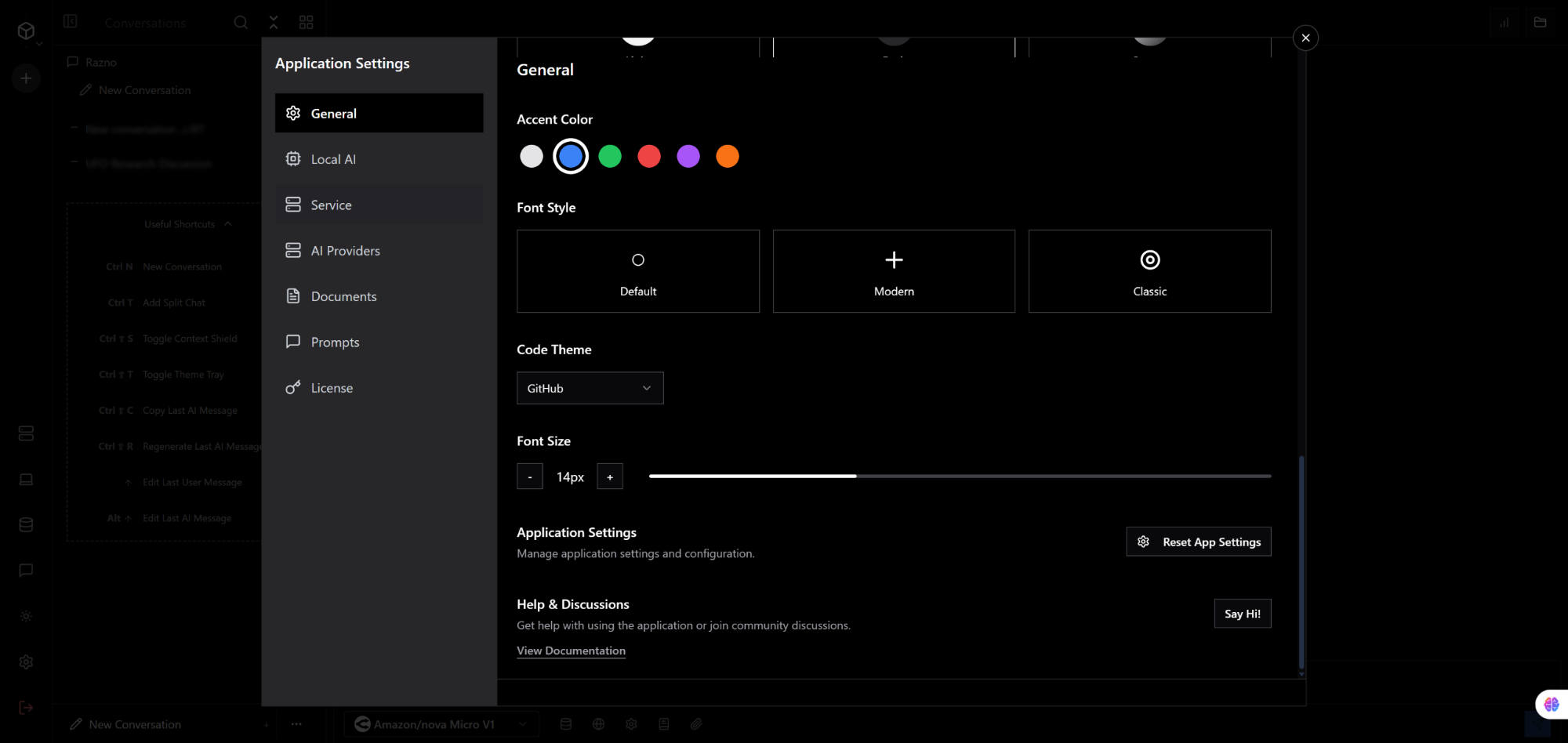 General settings for theme and appearance customization
Troubleshooting
Hosted cloud
Can't sign in — use Forgot password on the login page. If the reset email does not arrive within a few minutes, check spam, then email support.
A document is stuck in "Processing" — large scanned PDFs need OCR and can take several minutes. If it has not moved in 30 minutes, report it with the document name and size.
A feature is greyed out or returns "upgrade required" — it belongs to a higher plan. See Pricing for what each tier includes.
Self-hosted (Community Edition)
A container will not start
docker compose ps          # which service is unhealthy
docker compose logs chat # or: backend, gw, ui, pgvector, redis"Connection to database failed"
# Is Postgres healthy?
docker compose ps pgvector
docker compose logs pgvector

# Most common cause: POSTGRES_PASSWORD in .env was changed after the
# volume was created. Either restore the old password, or start clean:
docker compose down -v && docker compose up -d --buildPort already in use
# Find what holds the port (3000, 8080, 8090, 8091, 15432, 6379)
sudo lsof -i :3000

# Then change the host-side port mapping in docker-compose.ymlThe UI loads but every request fails — the UI talks to the gateway, not to the backends directly. Check the gateway first: docker compose logs gw.
Answers come back empty or without citations — no LLM key is configured, or the key is rejected. Check docker compose logs chat for authentication errors from your provider, and confirm the key in .env and in Settings → AI Providers.
Next Steps
Learn more
- User Guide — detailed feature walkthrough
- Architecture — how Scrapalot works
- API Reference — REST API documentation
Advanced features
- External Connectors — Google Drive, Dropbox, academic databases
- Model Management — configure AI models
- Connector Development — build custom connectors
Deployment
- Production Deployment — deploy to production
- Cloud Infrastructure — deploy to cloud providers
- GPU Deployment — hardware acceleration
Tips for Success
Performance
- Use SSD storage for faster document processing
- Allocate 8 GB+ RAM to Docker when self-hosting the full stack
- Use local models for privacy and cost savings
- Split large corpora into collections so retrieval stays focused
Best practices
- Organize documents into collections by topic
- Use descriptive names for easy searching
- Ask specific questions for better answers
- Review sources to verify information
- Share collections with your team
Security (self-hosted)
- Set a strong
POSTGRES_PASSWORDandJWT_SECRETbefore first boot - Use strong passwords for user accounts
- Put a TLS-terminating reverse proxy in front of the gateway before exposing it
- Keep API keys in
.envand never commit that file - Back up the Postgres volume regularly
Getting Help
Community support
- GitHub Discussions: Ask questions and get help from the community
- Discord: Real-time chat, self-hosting help, roadmap
- GitHub Issues: Report bugs and request features
- Email: support@mail.scrapalot.app
Documentation
- User Guide — every feature, explained
- Editions — what the Community Edition includes versus the hosted product
- Architecture — how retrieval, the knowledge graph and deep research fit together
You're Ready!
Start uploading documents and asking questions.
Try Scrapalot Now
Web app (free Researcher plan): start at scrapalot.app — no install needed.
Desktop app: Windows, macOS and Linux.
Android app: download the APK and sideload it.
Self-hosting: Community Edition on GitHub — free, AGPL-3.0.
Need the full research suite or team features? See Pricing for Pro, Team and Enterprise.